Users & Roles
Use Users & Roles to manage staff access and role permissions.
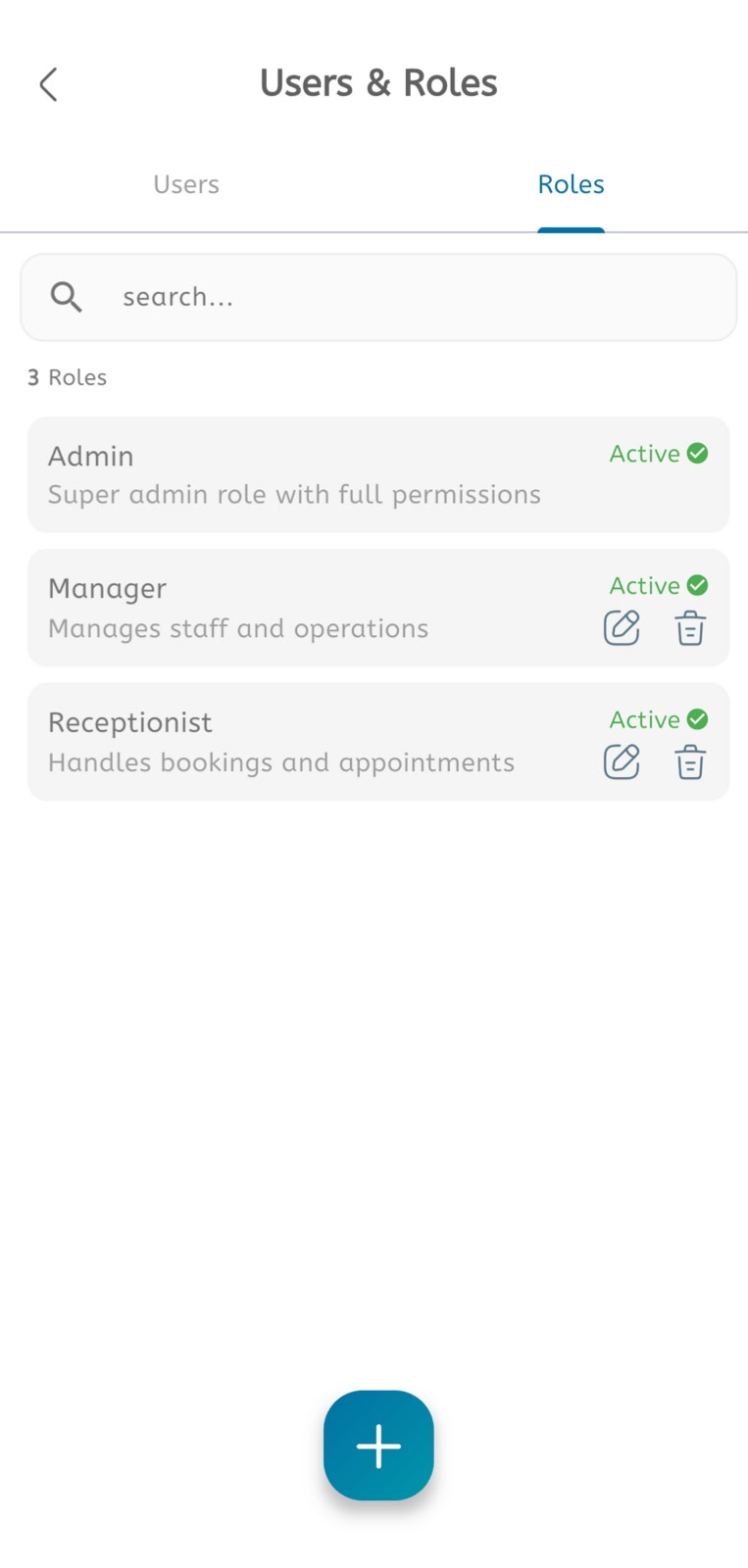
View roles
- Open the main menu.
- Expand Settings.
- Tap Users & Roles.
- Select the Roles tab.
- Review the role count.
- Use the search bar to find a role.
- Review each role name.
- Check the role description.
- Confirm whether the role is Active.
- Use the edit icon to update editable roles.
- Use the delete icon to delete removable roles.
- Note that the default Admin role has full permissions and may not be editable.
Manage users
- Open Users & Roles.
- Select the Users tab.
- Review the staff user list.
- Add a user when a new staff member needs access.
- Assign the correct role.
- Save the user.
- Edit or deactivate users when access changes.