Leads
Use Leads to track enquiries and potential patients before they become appointments. WhatsApp enquiries received through the connected WhatsApp channel will also be received as leads.
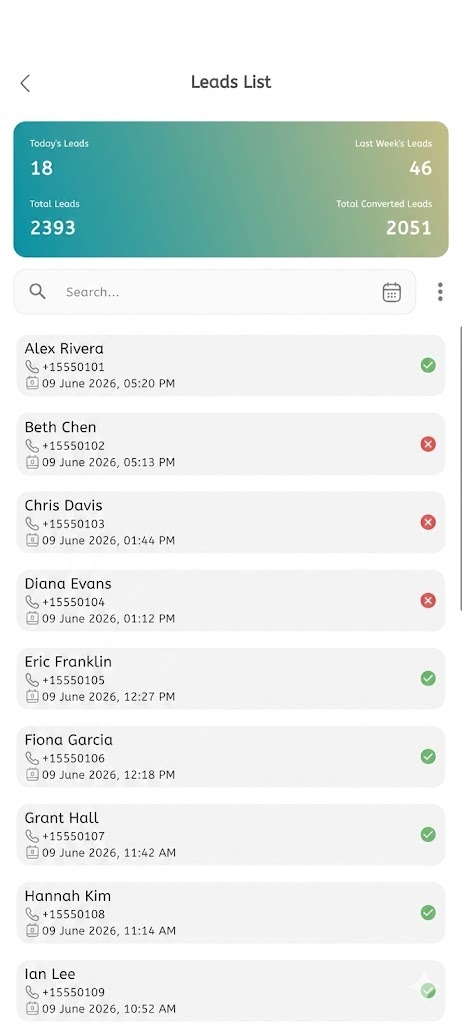
Manage leads
- Open the main menu.
- Tap Leads.
- Review the leads list.
- Use search or filters to find a lead quickly when available.
- Open a lead to view the submitted details.
- Review the lead name, phone number, source, notes, and status when shown.
- Update the lead information when required.
- Add notes or lead source details if available.
- Convert the lead into an appointment when the patient is ready to book.
- Save the changes.
Use lead details while creating an appointment
- Open Create Appointment.
- Enter or select the lead information when lead fields are enabled.
- Add notes if required.
- Complete the appointment details.
- Tap Create.
- Confirm the lead information is attached to the appointment record.