Appointments
Use Appointments to create, search, filter, and manage patient bookings.
Create an appointment
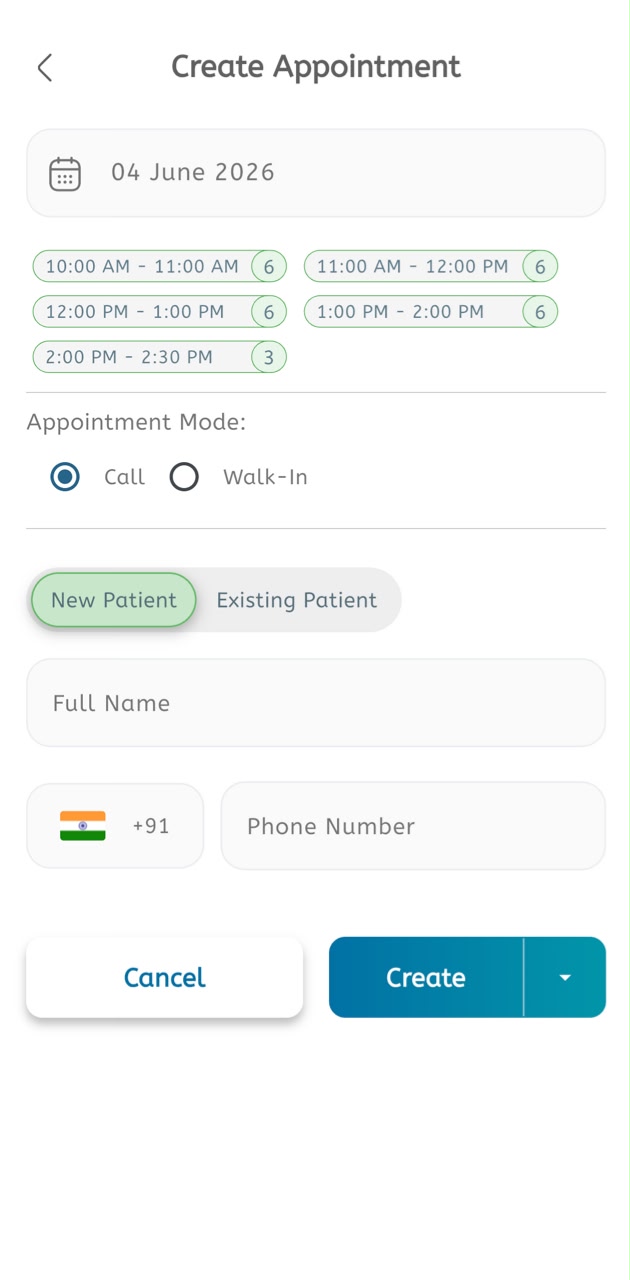
- Open Appointments from the main menu or the bottom navigation.
- Tap the + button to open Create Appointment.
- Select or confirm the appointment date.
- Review the available time slots for the selected date.
- Choose an available time slot. The number on the right side of each slot shows the available capacity.
- Select Appointment Mode.
- Choose Call or Walk-In.
- Select the patient type: New Patient or Existing Patient.
- For a new patient, enter the patient Full Name.
- Select or confirm the country code.
- Enter the patient Phone Number.
- When additional fields are enabled, enter Age, Gender, Notes, and Lead details.
- Review all entered appointment details.
- Tap Create to save the appointment.
- Tap the arrow beside Create only when additional create actions are available.
- Tap Cancel to leave without creating the appointment.
Appointment list
- Open Appointments from the main menu.
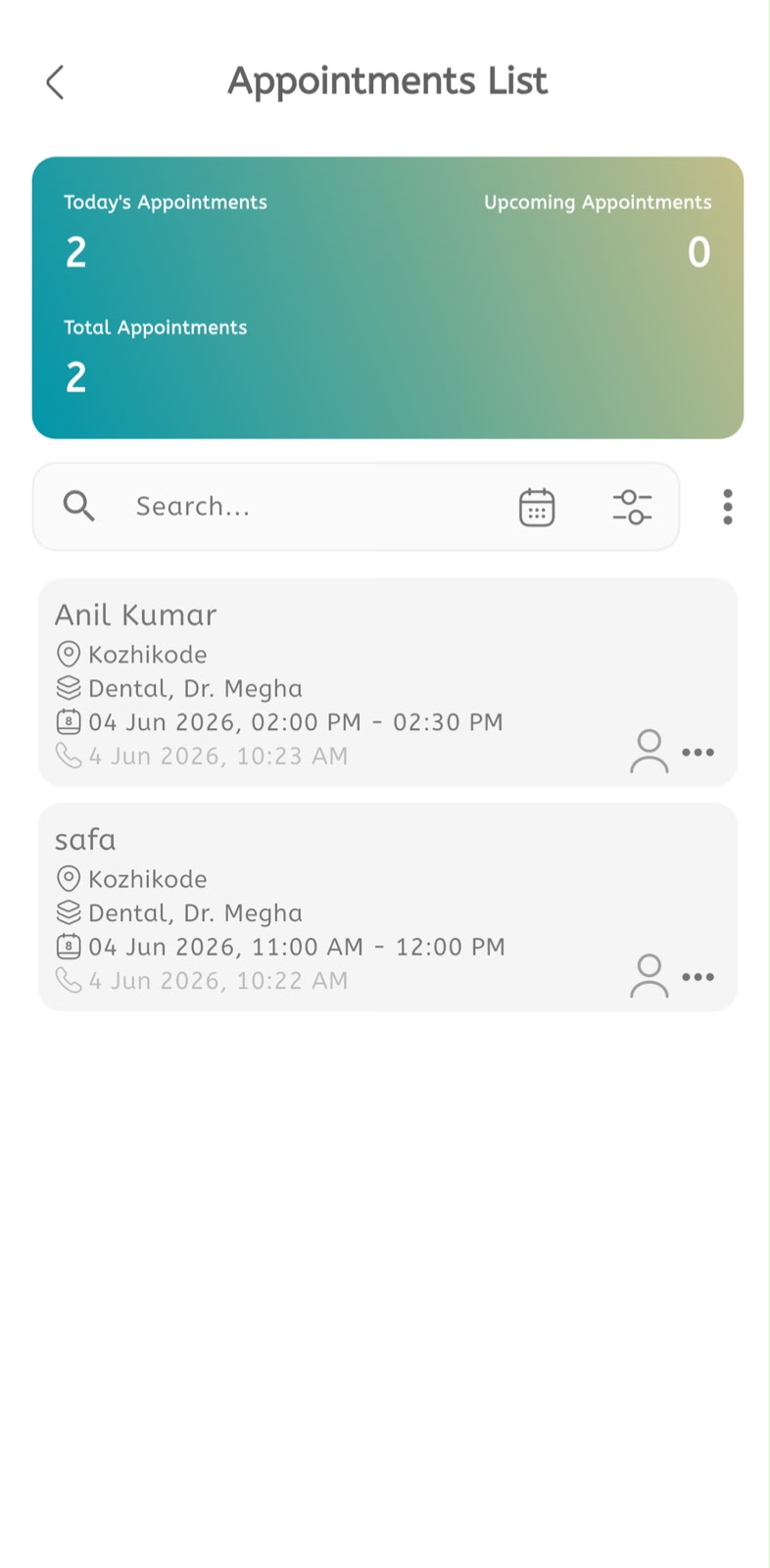
- Review the summary card at the top.
- Check Today's Appointments.
- Check Upcoming Appointments.
- Check Total Appointments.
- Use Search to find appointments by patient name or appointment information.
- Tap the calendar icon to filter by date.
- Tap the filter icon to open filters.
- Tap the three-dot menu for more actions.
- Review each appointment card.
- Check the patient name.
- Check the location.
- Check the service or doctor.
- Check the appointment date and time.
- Check the booking or call time shown on the card.
- Use the patient/action icons on the card to open details or actions.
Filter appointments
- Open Appointments.
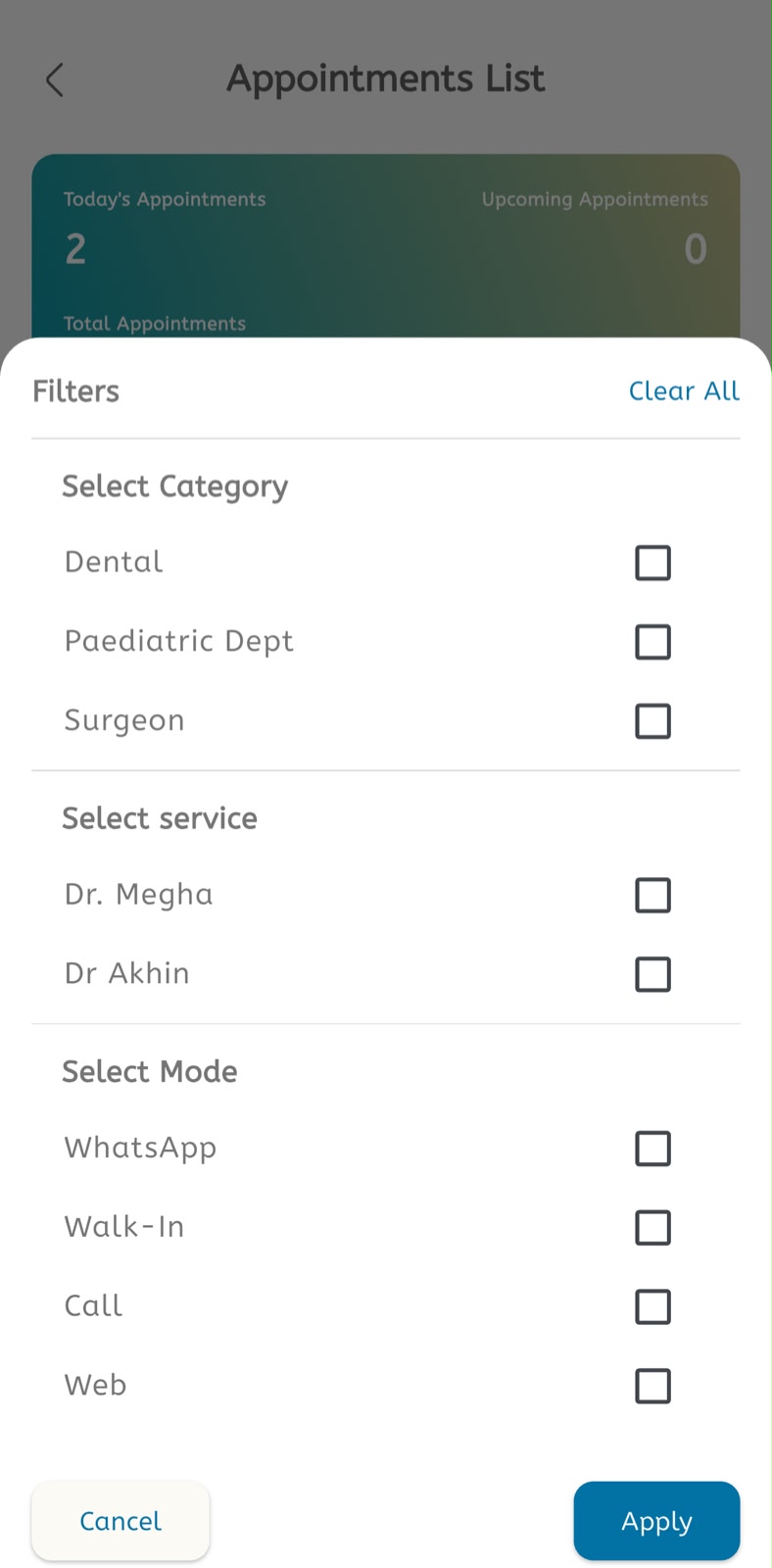
- Tap the filter icon.
- Under Select Category, choose one or more categories such as Dental, Paediatric Dept, or Surgeon.
- Under Select service, choose the required service or doctor such as Dr. Megha or Dr Akhin.
- Under Select Mode, choose one or more modes: WhatsApp, Walk-In, Call, or Web.
- Tap Apply to apply the selected filters.
- Tap Clear All to remove all selected filters.
- Tap Cancel to close the filter panel without applying changes.