Token Calling
Use Token to manage the live patient queue, call the next patient, and mark patient attendance during the consultation flow.
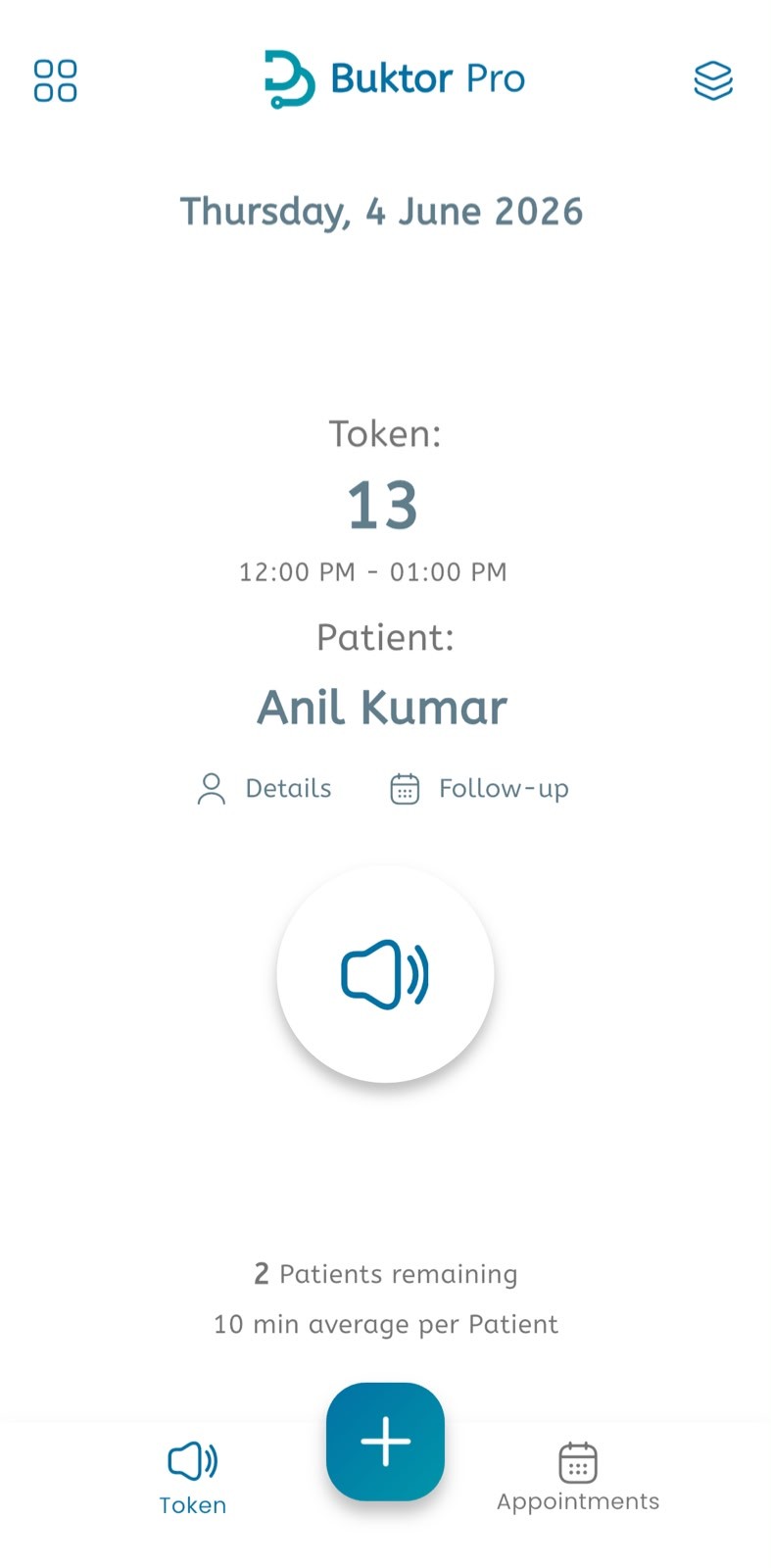
Call a token and mark attendance
- Open Token from the bottom navigation.
- Confirm the selected date shown at the top.
- Check the current Token number.
- Check the appointment time slot shown below the token.
- Confirm the patient name.
- Tap Details to view patient or appointment details.
- Tap Follow-up to create or manage a follow-up appointment.
- Tap the speaker button to call or announce the token.
- Use the consultation/attendance action to mark the patient as visited after the patient is handled.
- Review the number of patients remaining.
- Review the average time per patient.
- Tap the + button to add a new appointment or quick action.
- Tap Appointments to return to the appointment list.
Token filters
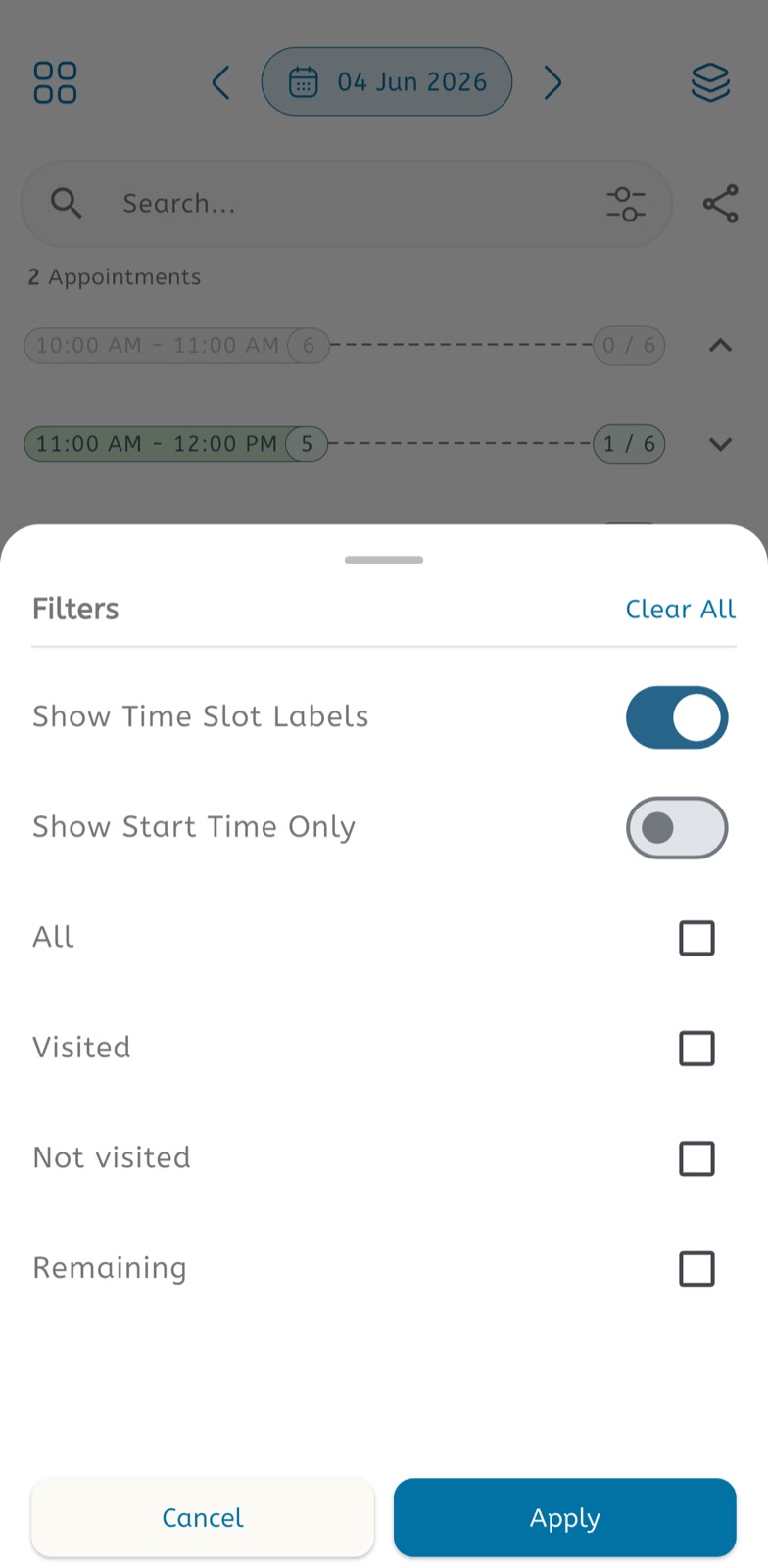
- Open the token or appointment timeline view.
- Tap the filter icon.
- Turn Show Time Slot Labels on or off.
- Turn Show Start Time Only on or off.
- Select All to show all patients.
- Select Visited to show completed patients.
- Select Not visited to show patients not marked visited.
- Select Remaining to show patients still waiting.
- Tap Apply.
- Tap Clear All to reset filters.
- Tap Cancel to close without applying.