Services
Use Services to manage doctors, service departments, categories, duration, pricing, and active status.
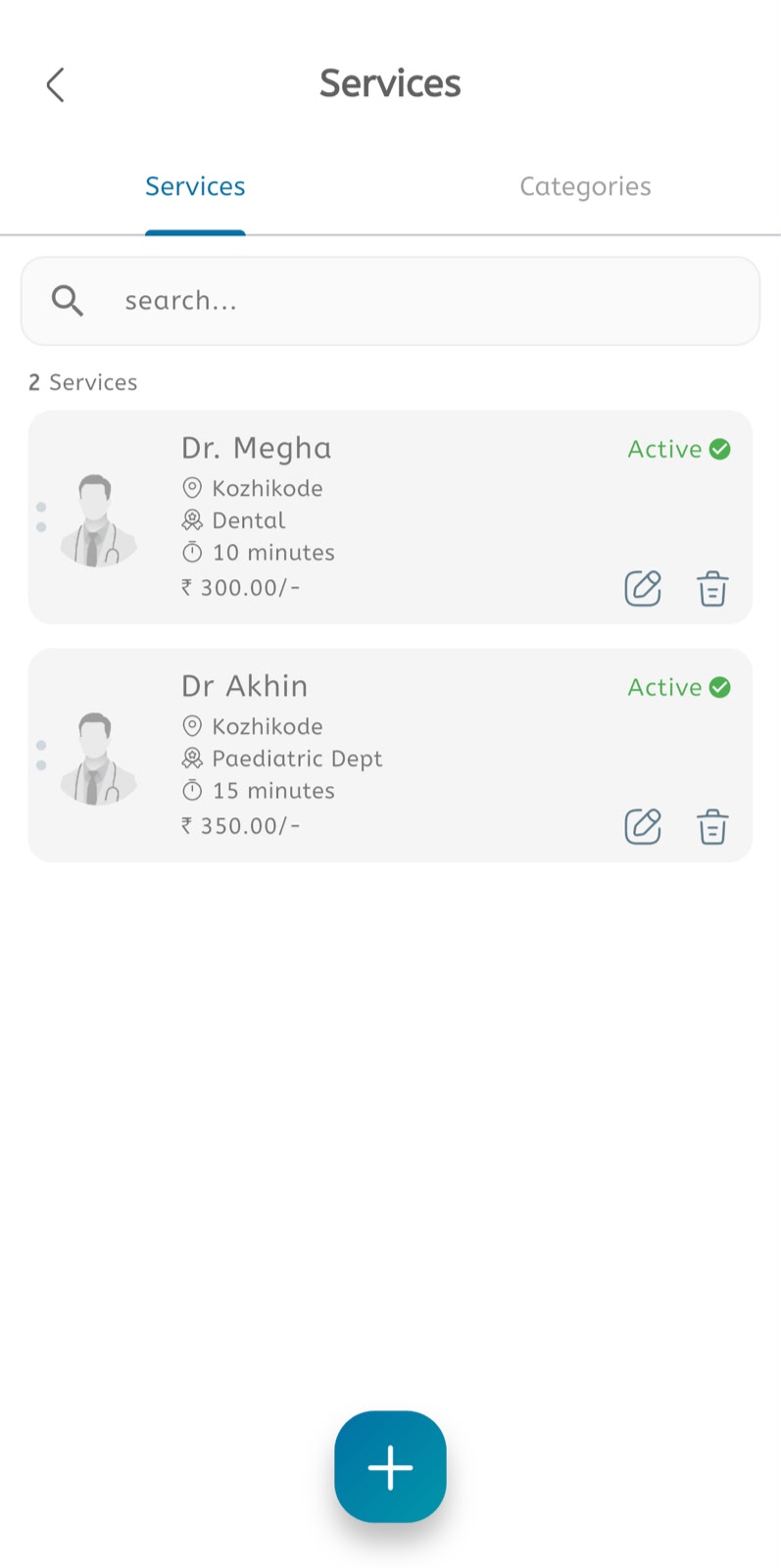
View services
- Open the main menu.
- Tap Services.
- Select the Services tab.
- Review the number of services.
- Use Search to find a service.
- Review the service or doctor name.
- Check the location.
- Check the category or department.
- Check the duration.
- Check the price.
- Confirm whether the service is Active.
- Use the edit icon to update the service.
- Use the delete icon to remove the service.
Create a service
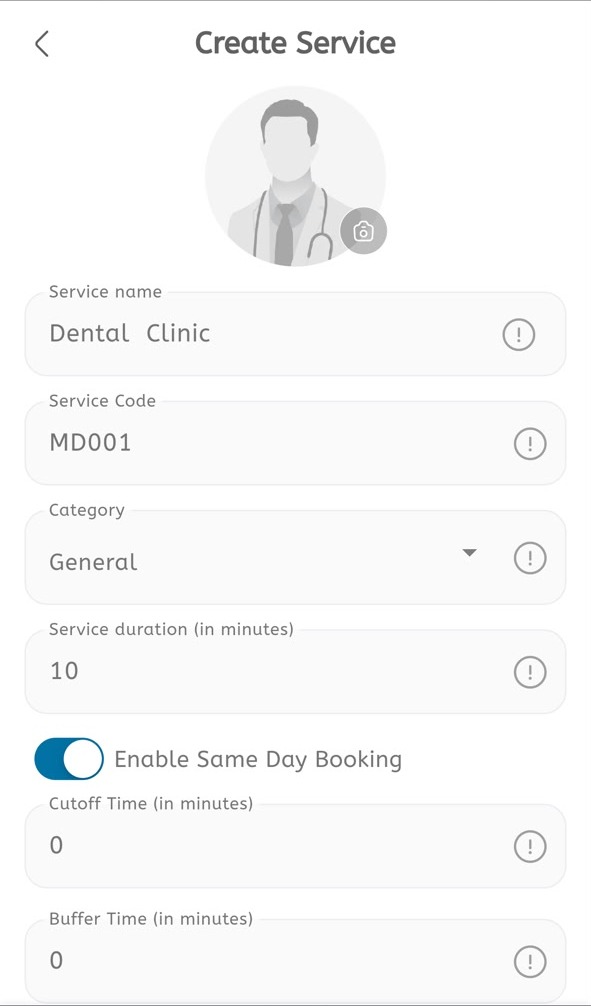
- Open Services.
- Tap the + button.
- Add or update the service image if required.
- Enter the Service name.
- Enter the Service Code.
- Select the Category.
- Enter the Service duration in minutes.
- Enable Same Day Booking if patients can book the service on the same day.
- Enter the Cutoff Time in minutes.
- Enter the Buffer Time in minutes.
- Complete any additional service fields shown in the form.
- Save or create the service.
Consultation mode and pricing
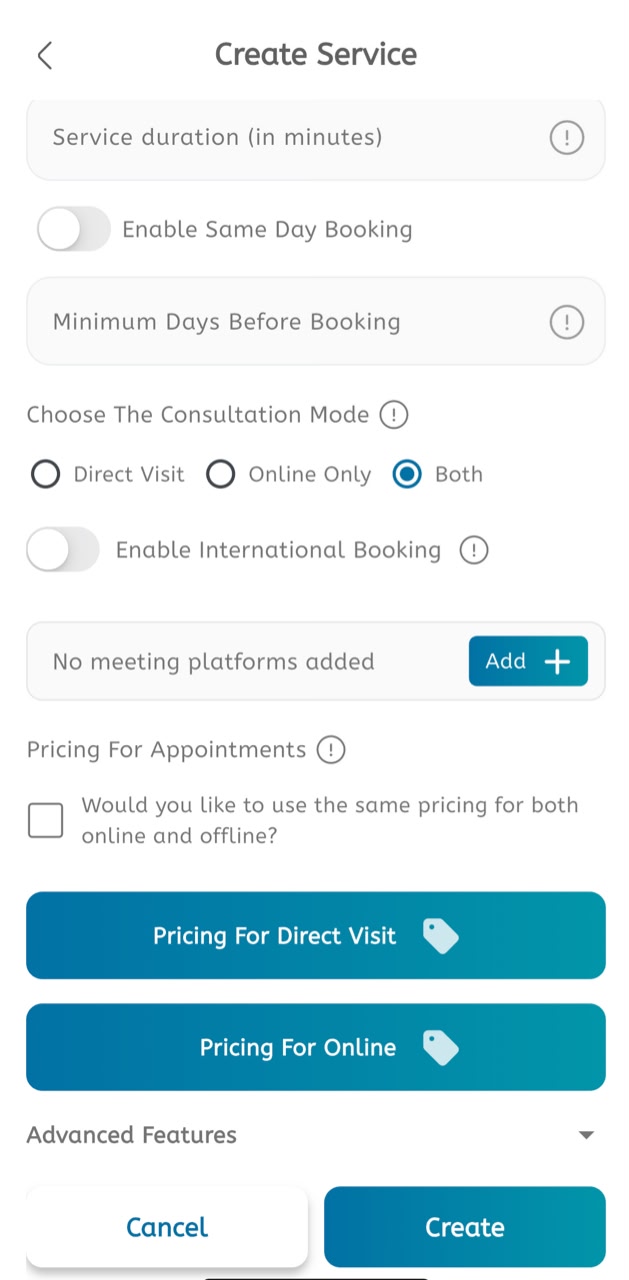
- Choose the Consultation Mode: Direct Visit, Online Only, or Both.
- Enable International Booking only when patients outside the default country should be allowed to book.
- Add a meeting platform when online appointments are enabled.
- In Pricing For Appointments, select Would you like to use the same pricing for both online and offline? when both modes should use one common price.
- If pricing is different by mode, open Pricing For Direct Visit and enter the in-clinic appointment price.
- Open Pricing For Online and enter the online consultation price.
- Review all values before tapping Create.
Categories
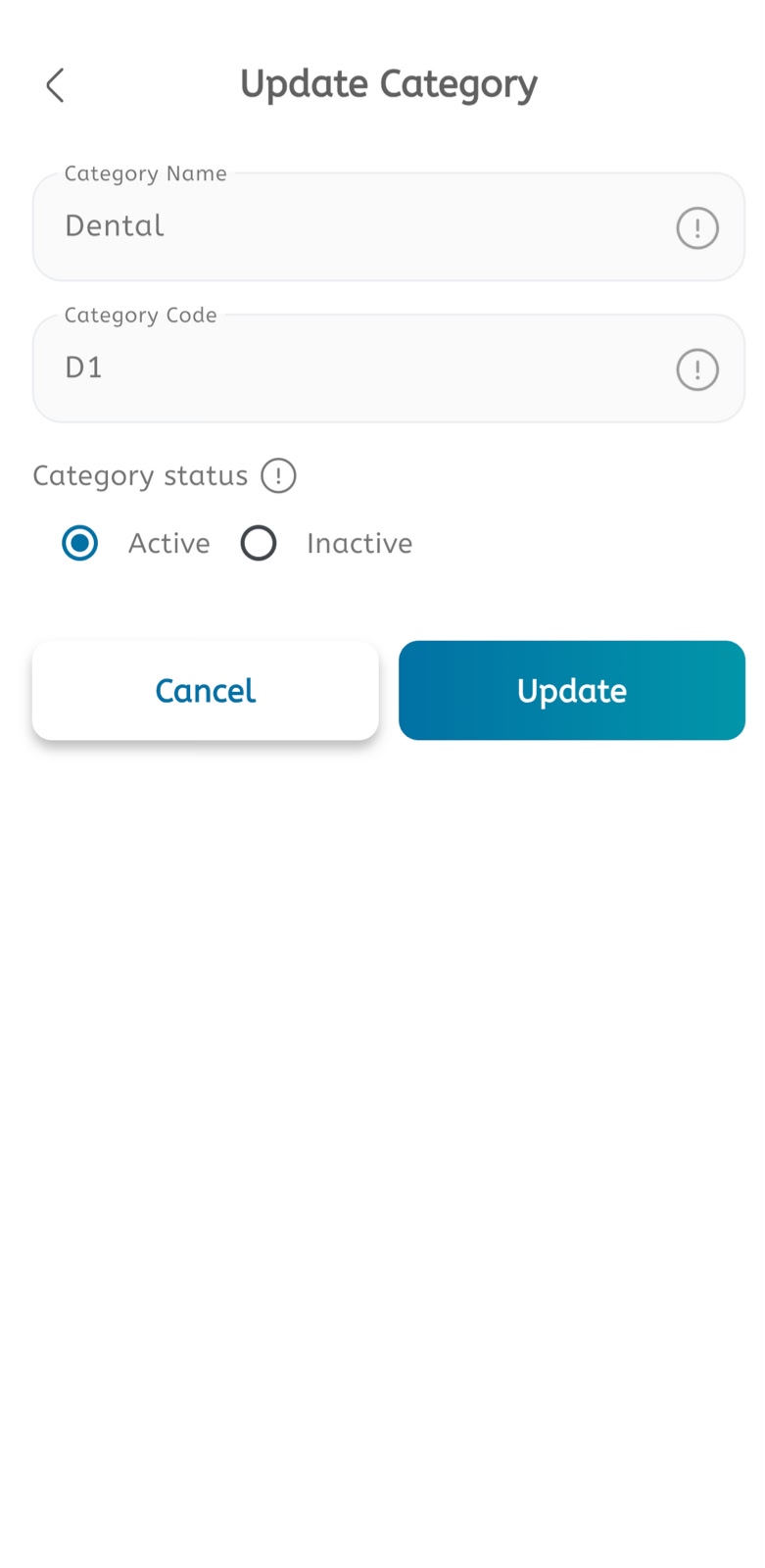
- Open Services.
- Select the Categories tab.
- Open the required category.
- Update the Category Name.
- Update the Category Code.
- Select Active or Inactive.
- Tap Update to save.
- Tap Cancel to discard changes.