Setting Up
Use this guide after creating your Buktor account. Complete the steps in order so your public booking profile, service location, services, and working hours are ready for patients.
1. Complete account setup
After the account is created, fill in the basic profile information.
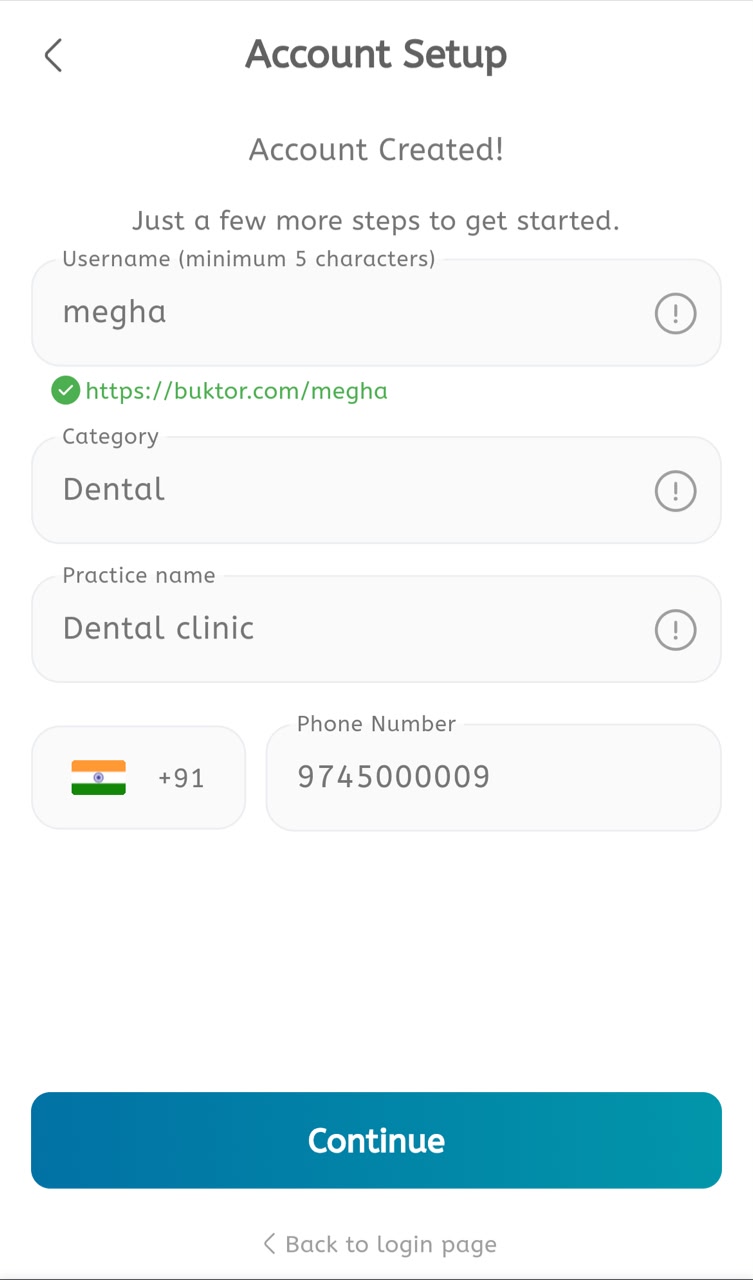
- Enter a Username with at least 5 characters.
- Confirm the public profile URL shown below the username, for example
https://buktor.com/megha. - Select the correct Category, such as Dental.
- Enter the Practice name exactly as it should appear to patients.
- Add the clinic Phone Number.
- Tap Continue.
2. Add location details
Fill in the location information patients will use for booking and visiting your clinic.
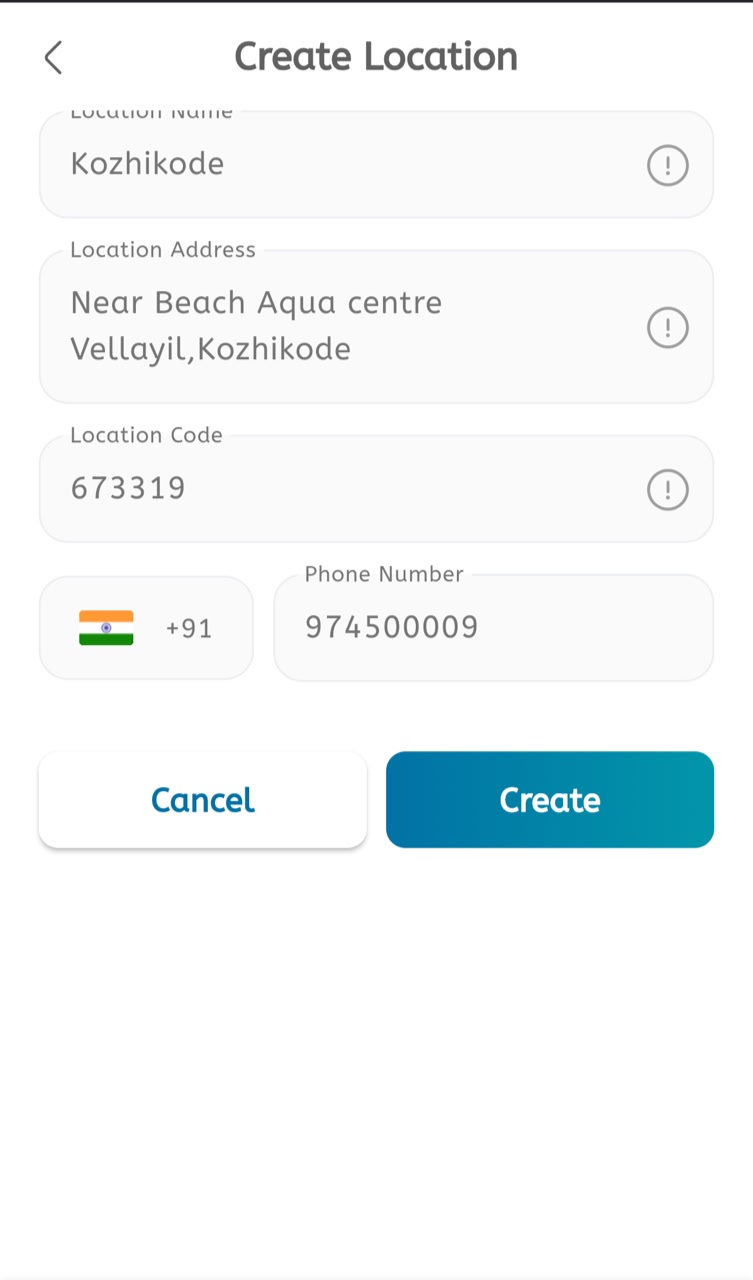
- Enter the Location Name, for example
Kozhikode. - Enter the full Location Address.
- Add the Location Code or postal code.
- Confirm the country code and Phone Number.
- Tap Create to save the location.
- Tap Cancel only if you want to discard the location setup.
3. Create a service
After the location is ready, create the service that patients can book.
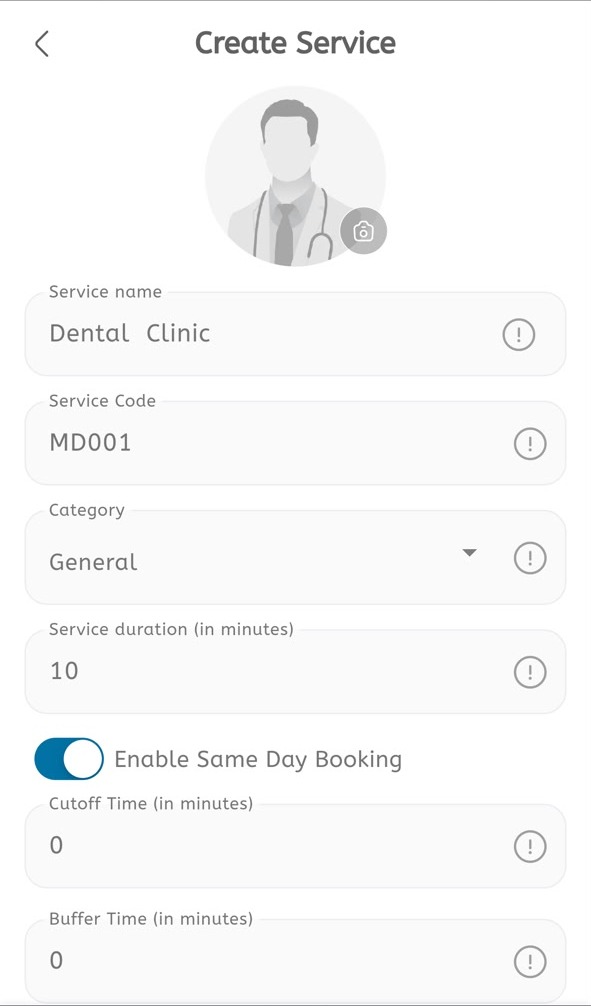
- Open Create Service.
- Add or update the service image, if required.
- Enter the Service name, such as Dental Clinic.
- Enter the Service Code, such as
MD001. - Select the Category.
- Enter the Service duration in minutes.
- Enable Same Day Booking if patients can book the service on the same day.
- Set Cutoff Time and Buffer Time in minutes.
- Choose the required Consultation Mode: Direct Visit, Online Only, or Both.
- Configure appointment pricing. Use the same price for online and offline when applicable, or enter separate prices for Direct Visit and Online.
- Save the service when all information is correct.
4. Set working hours
Configure the days and times when patients can book appointments.
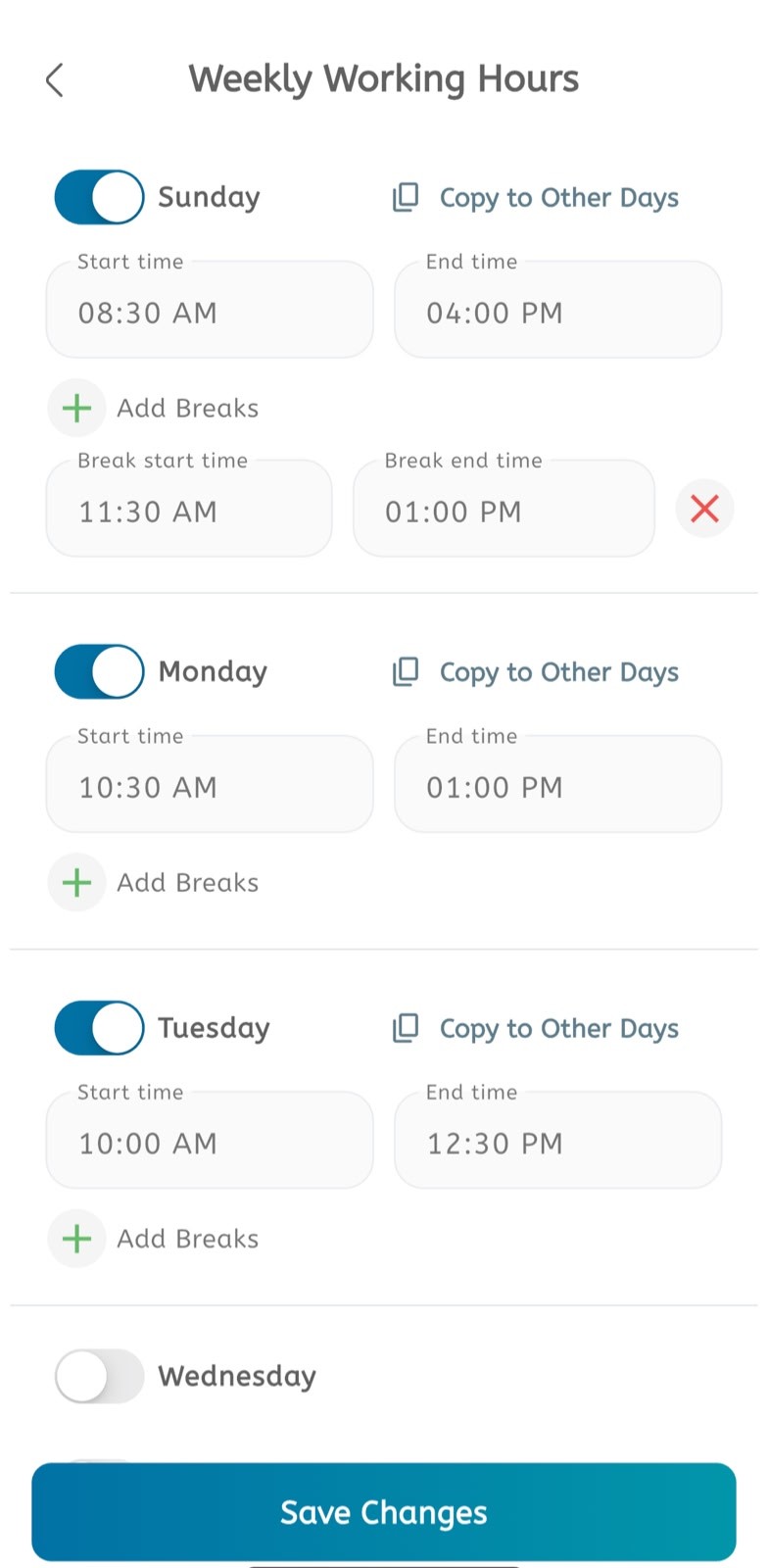
- Open Working Hours.
- Enable the days when the clinic is open.
- Set the Start time and End time for each working day.
- Add breaks if the clinic is unavailable during part of the day.
- Save the working-hours settings.
Setup checklist
Before publishing your profile, confirm that:
- Account profile details are correct.
- At least one location is created.
- At least one bookable service is created.
- Working hours are saved.
- The phone number and address are accurate.
After these steps, your Buktor profile is ready for appointment booking.