Dashboard
The Dashboard gives a quick overview of clinic activity, booking channels, consultation types, appointment trends, visit status, and revenue statistics.
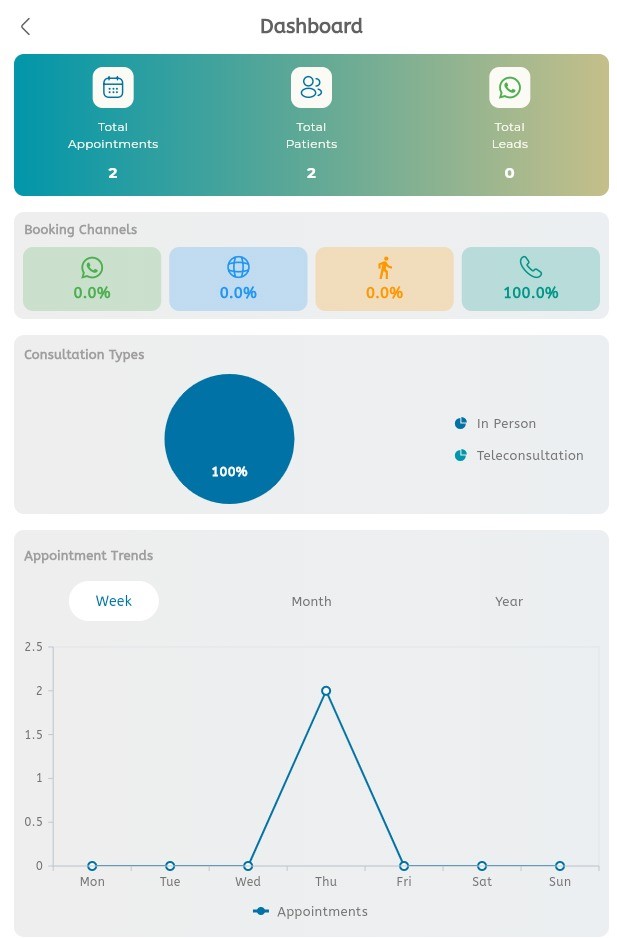
Review dashboard overview
- Open the main menu.
- Tap Dashboard.
- Check Total Appointments to see the appointment count.
- Check Total Patients to see the patient count.
- Check Total Leads to see new lead count.
- Review Booking Channels to compare WhatsApp, Web, Walk-In, and Call bookings.
- Review Consultation Types to compare In Person and Teleconsultation appointments.
- Use Appointment Trends to compare bookings by Week, Month, or Year.
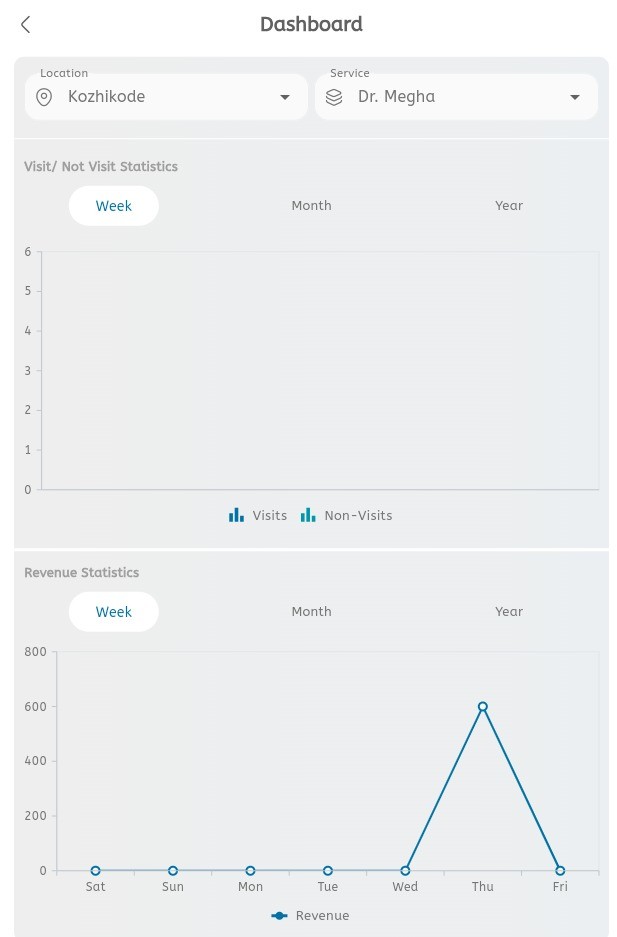
Review dashboard statistics
- Select the required Location.
- Select the required Service.
- Review Visit / Not Visit Statistics.
- Switch between Week, Month, and Year.
- Review Revenue Statistics.
- Use the chart to compare revenue trends over time.
Main menu order
Use the main menu in this order:
- Dashboard
- Appointments
- Leads
- Patients
- Payments
- Calendar
- Schedules
- Holidays
- Late Arrivals
- Hold Slots & Tokens
- Services
- Profile
- Overview
- Specifications
- Contact
- Settings
- Account Settings
- Users & Roles
- Message Settings
- Message Templates
- Billing
- Notifications
- System Tools
- Activity Log
- Reminder Log
- Developer Tools
- Help & Support
- Feedback