Message Templates
Use Message Templates to manage WhatsApp, voice, and SMS template content.
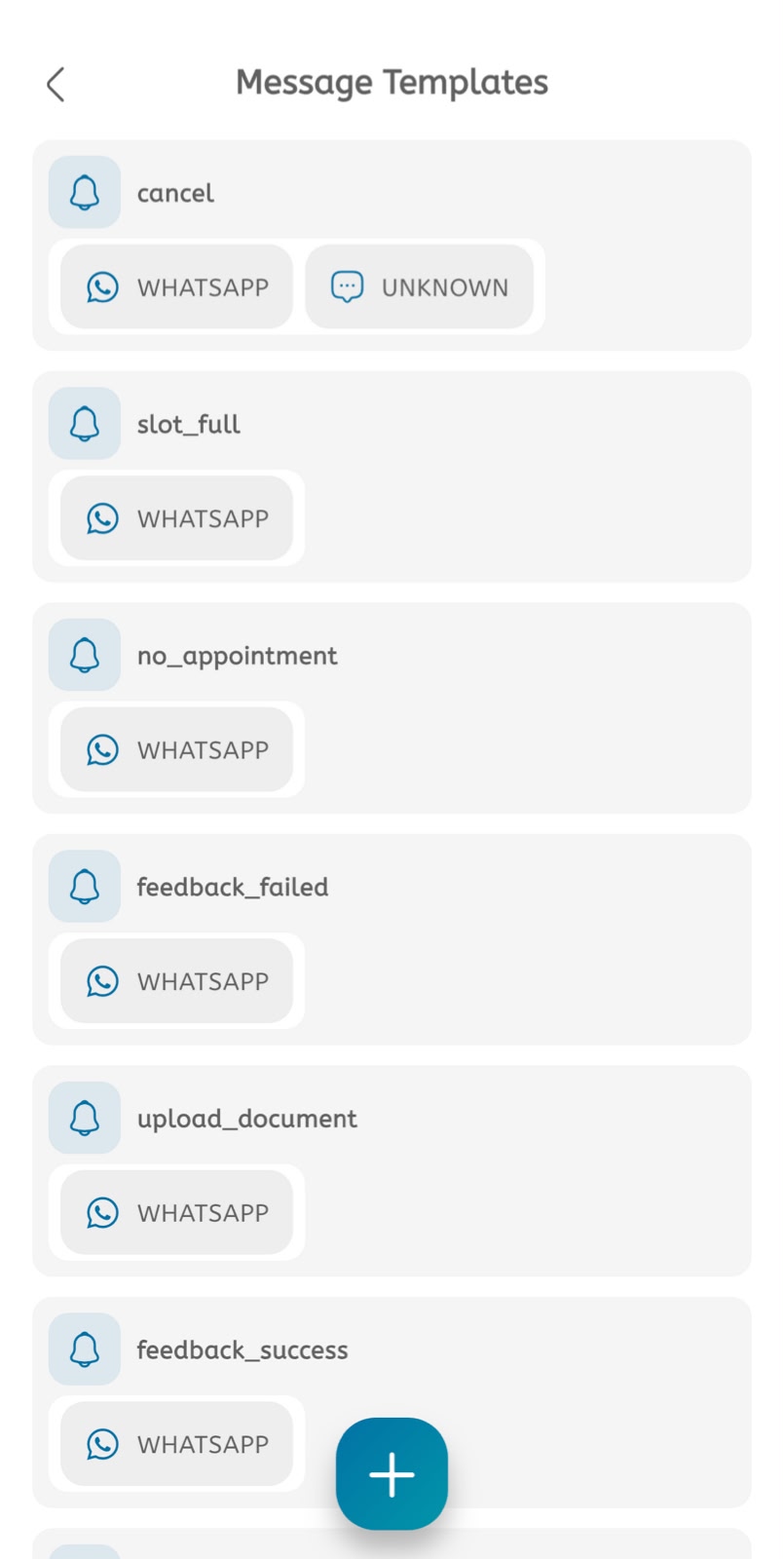
View templates
- Open the main menu.
- Expand Settings.
- Tap Message Templates.
- Review the template list.
- Check the template purpose, such as cancel, slot full, no appointment, feedback, upload document, or feedback success.
- Check the available channels on each template card.
- Tap a template to open and update it.
- Tap the + button to add a new template.
Update a template
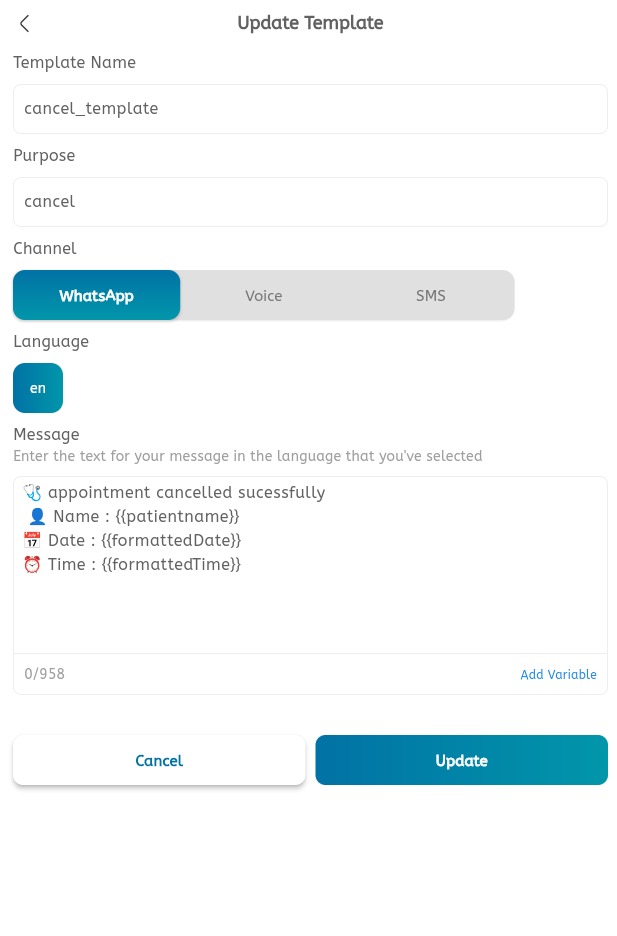
- Open a template.
- Review the Template Name.
- Review or update the Purpose.
- Select the Channel: WhatsApp, Voice, or SMS.
- Select the Language.
- Edit the Message.
- Use variables such as patient name, formatted date, and formatted time.
- Tap Add Variable to insert supported variables.
- Check the character count.
- Tap Update to save.
- Tap Cancel to leave without saving.