Hold Slots & Tokens
Use Hold Slots & Tokens to block selected slots or token occurrences from being booked by patients.
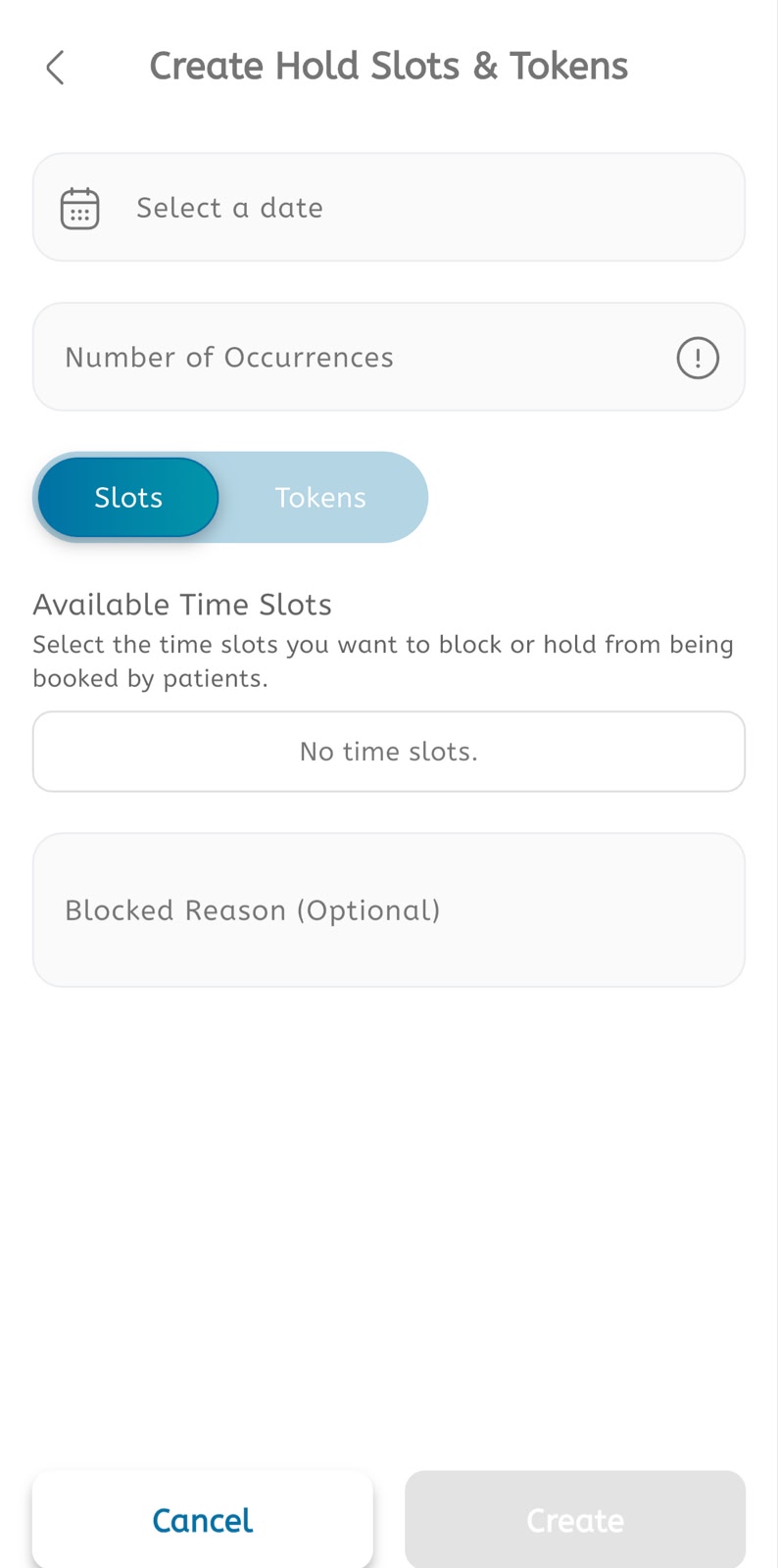
Create a hold
- Open the main menu.
- Expand Calendar.
- Tap Hold Slots & Tokens.
- Tap the + button or open Create Hold Slots & Tokens.
- Tap Select a date and choose the date.
- Enter the Number of Occurrences if the hold should repeat.
- Select Slots to hold time slots.
- Select Tokens to hold token numbers instead of full slots.
- Under Available Time Slots, select the slots to block or hold.
- If no slots are available, confirm the selected date and schedule settings.
- Enter a Blocked Reason if needed.
- Tap Create when the required slots or tokens are selected.
- Tap Cancel to leave without saving.